



Related articles and resources
Why preview a website in Plesk
It may happen that you want to ensure your site is working properly on our hosting services before modifying the DNS of your domain name.
The Plesk website preview feature allows you to view your website immediately after it has been published on our hosting servers (via FTP or through Plesk), even if your domain name is not yet pointing to our servers.
This functionality is useful for working on your site before proceeding with the actual modification of your domain name’s DNS. Indeed, after changing the IP address of the hosting server to which your domain name points, DNS propagation must be completed for your site to become accessible via that domain name, which can take between 24 and 48 hours.
This functionality has no impact on your site’s visibility or its SEO ranking: the preview of your site is displayed on a preview domain whose address is known only to you, such as:http://example.com.203-0-113-5.plesk-website-preview-domain.com/
If you plan to share this link with members of your team, make sure to never publish these preview links publicly.
Website preview modes in Plesk
Plesk offers several preview modes, which can be configured by the hosting server Administrator, namely Le Juste Web. The most practical and reliable mode selected and configured on our hosting services is the "Quick Preview on a domain name in Plesk" mode.
As a result, when you preview your website, the preview of your site is displayed on a dedicated domain name that we have previously configured on our hosting infrastructures, such as:http://example.com.203-0-113-5.plesk-website-preview-domain.com/
Other modes are available in Plesk, such as the "Default Quick Preview" mode, which relies on numerous rewrite rules provided by Plesk in order to simulate a preview. These rewrite rules are imperfect and make this preview mode less reliable, causing operational issues and display bugs on the preview of your website. This is the reason why this mode has not been adopted on our infrastructure.
How to preview your website in Plesk
The following procedure allows you to display the preview of your website from Plesk.
Login to Plesk
Log in to the Plesk management interface that was provided to you when you subscribed to your hosting service.
Disable HTTPS and WWW redirection rules
If your
web.configfile includes rewrite rules that force redirection to HTTPS and/or WWW, temporarily disable or comment them out. You will re-enable them when your site goes live. Proceed as indicated in this section.If you wish to display the preview via HTTPS, this is possible. However, you will need to temporarily disable any rule in your
web.configresponsible for redirecting to WWW.Access your domain in Plesk
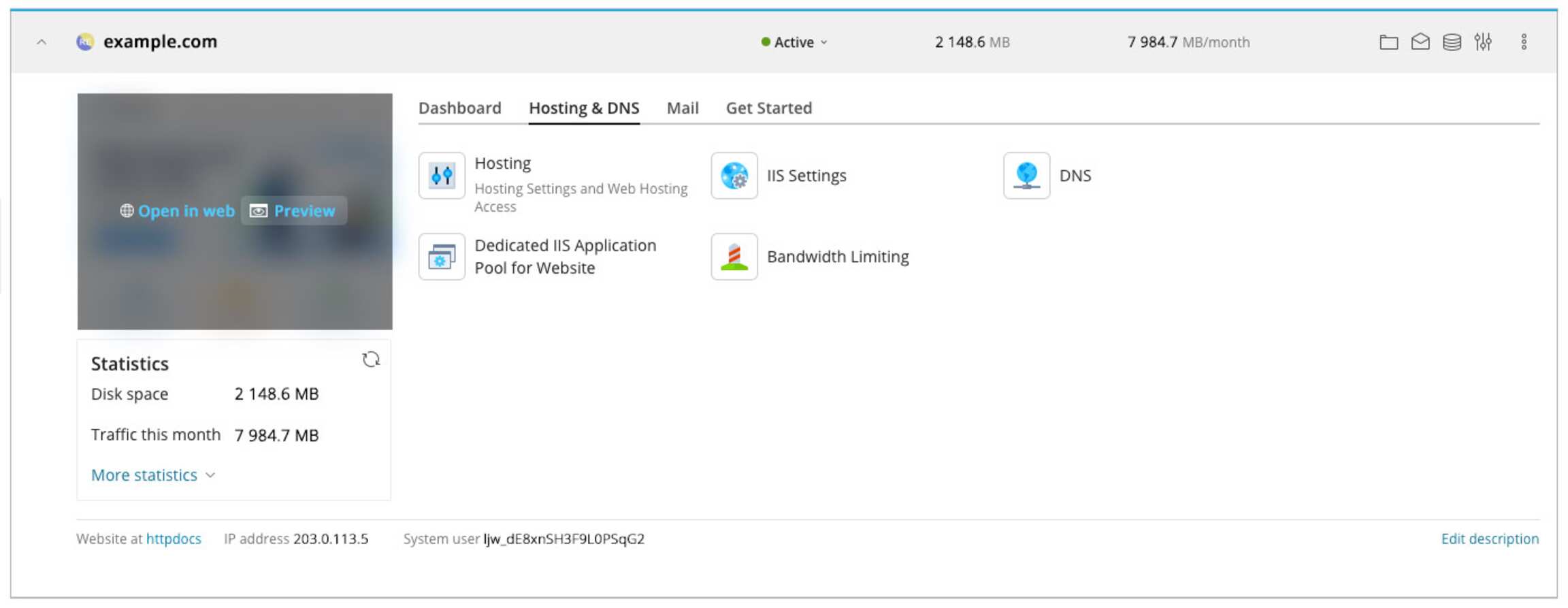
In the Plesk interface, go to the "Websites & Domains" section, then select the domain you want to preview.
Open the website preview
- Hover over the preview screenshot of your website, then click the "Preview" button.
- This button is hidden by default and only appears when you hover over the preview thumbnail of your site.
- Your site preview opens in a new tab.

Browse your website preview
You can now browse your site in preview mode, directly from the preview domain provided for this purpose on our hosting services. This allows you to test your site under real conditions.
Disable web.config rules
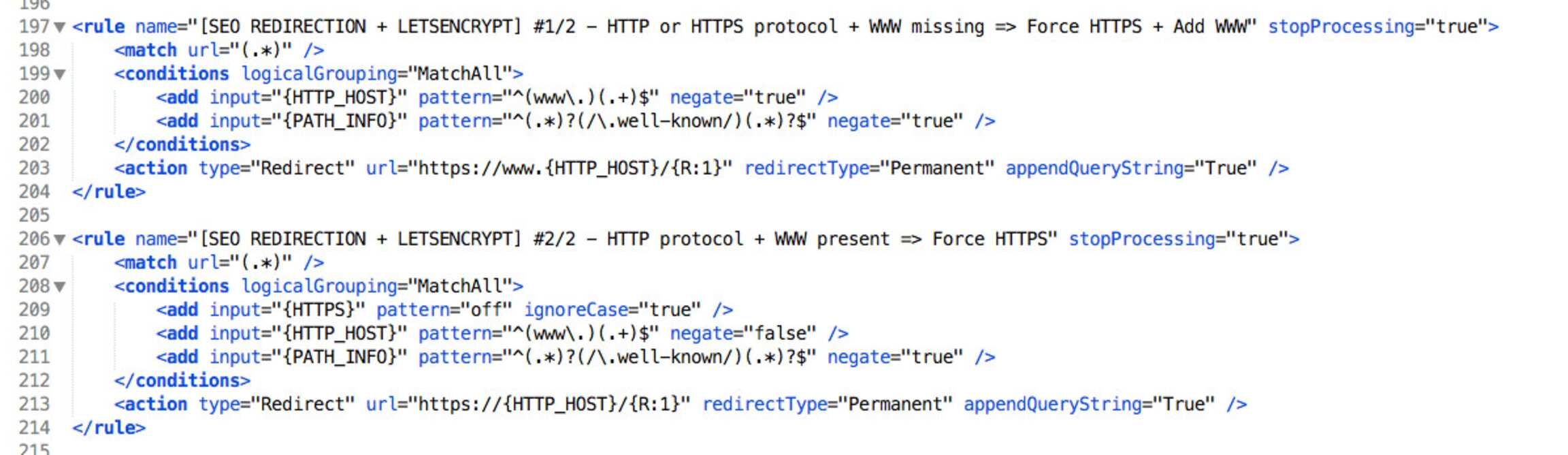
If your web.config file includes rewrite rules that force redirection to HTTPS and/or WWW, these may prevent your site preview from displaying correctly. Temporarily disable or comment them out; you will re-enable them when your site goes live.
If you wish to display the preview via HTTPS, this is possible. At a minimum, disable any rule in your web.config responsible for redirecting to WWW.
The screenshot below shows an example of rules to disable; the rules actually present in your web.config file may be different.
Clearing the cache
Depending on the content of your web.config file, or if you have followed the steps in this article in a scattered order, it may happen that your browser cache takes precedence and still attempts to redirect your site preview to an incorrect URL (with WWW or via HTTPS).
For example, if you tried to preview your site without first disabling the HTTPS and/or WWW redirection rules in your web.config file, or if you accepted certificates exceptions that you wish to remove, you can clear your browser cache as follows:
- Firefox :
- Clear the "Cache" and "Offline Website Data"
- Go to Firefox preferences: about:preferences#privacy
- Scroll down to the "Certificates > View Certificates > Servers > Delete the site entry" section
- Chrome :
- Settings > Clear browsing data (chrome://settings/clearBrowserData )
You can also open a new private browsing tab. This is the method we recommend because no preferences or exceptions are permanently stored in private browsing mode.
Troubleshooting common issues
In most cases, the website preview feature works out of the box. However, you may encounter certain specific cases depending on how your site is developed, and particularly if custom redirection rules are present within the web.config file located at the root of your website. This section outlines the situations you may encounter and how to resolve them quickly.
The site preview redirects to the "www" version
Your website preview systematically opens a tab without any WWW prefix, such as:http://example.com.203-0-113-5.plesk-website-preview-domain.com/
If your web.config file contains rules that force redirection to the WWW subdomain, you will then be redirected:
- from :
http://example.com.203-0-113-5.plesk-website-preview-domain.com/ - to :
http://www.example.com.203-0-113-5.plesk-website-preview-domain.com/
If you wish to preview your website without the WWW prefix, disable the redirection/forcing rules to WWW in your web.config. Proceed as indicated in this section.
If the redirection to WWW persists despite disabling your redirection rules, this is due to your browser’s client-side cache. You must clear it by following the procedure indicated in this section.
NOTES: If your web.config file also contains HTTPS redirection rules in addition to the redirection to WWW, then your browser will attempt to redirect you:
- from :
http://www.example.com.203-0-113-5.plesk-website-preview-domain.com/ - to :
https://www.example.com.203-0-113-5.plesk-website-preview-domain.com/
In this case, your site preview will not function, because your rules attempt to redirect the preview both to HTTPS and to WWW. No TLS/SSL certificate exists for the site preview with the WWW prefix over the HTTPS protocol, so it will never be accessible. In this situation, make sure to comment out your redirection rules during your development or migration. Proceed as indicated in this section.
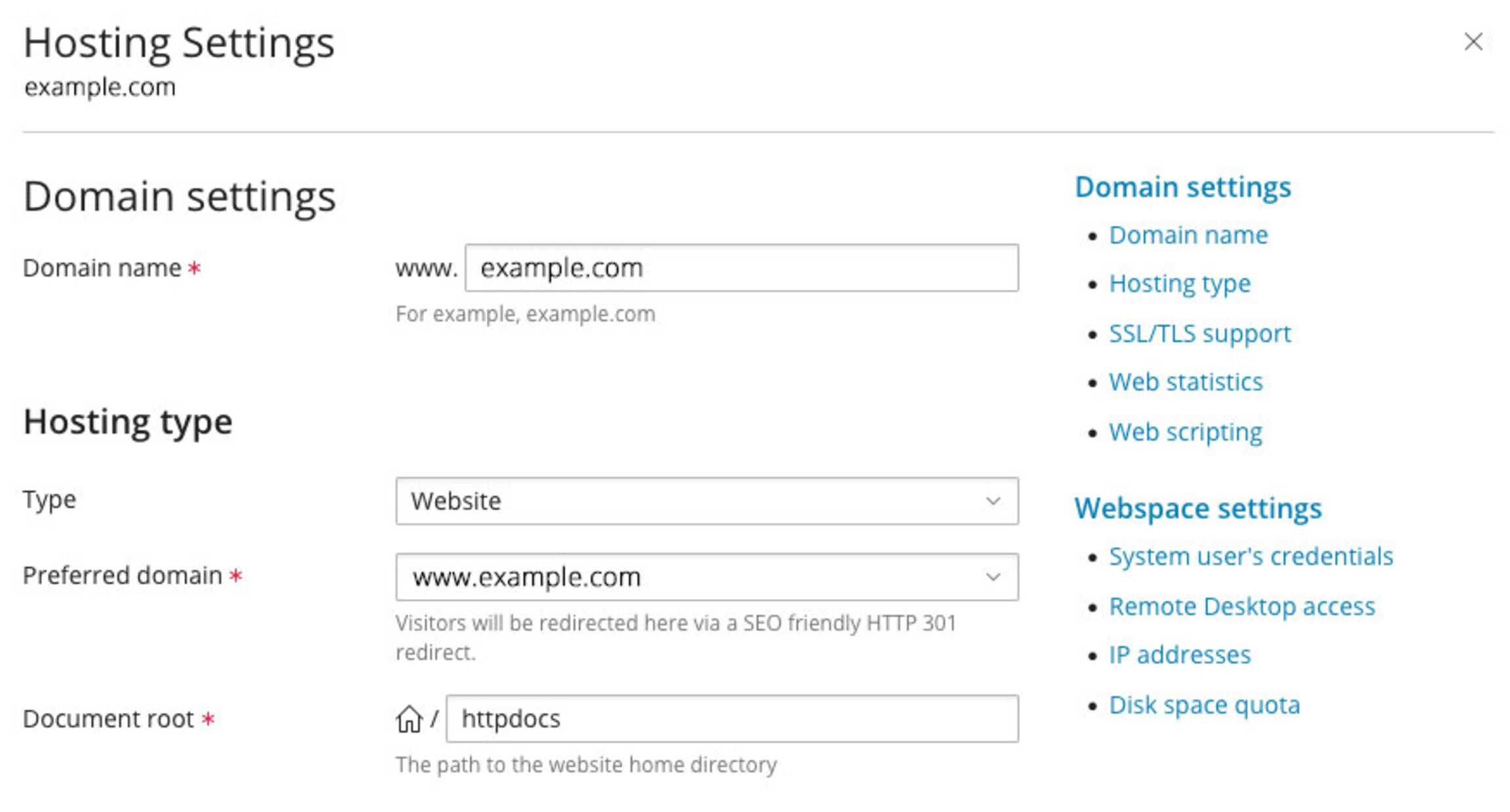
Note that your website preview will function regardless of the value of the "Preferred domain" setting in Plesk; there is no need to modify it:Hosting & DNS > Hosting > Hosting Settings > Hosting type > Preferred domain > www.example.com
The site preview redirects to HTTPS automatically
The site preview systematically opens a tab using the HTTP protocol (not secure), such as:http://example.com.203-0-113-5.plesk-website-preview-domain.com/. If your web.config file contains redirection rules to HTTPS, then your browser will attempt to redirect you:
- from :
http://example.com.203-0-113-5.plesk-website-preview-domain.com/ - to :
https://example.com.203-0-113-5.plesk-website-preview-domain.com/
If you wish to view your site preview via the HTTP protocol, disable the redirection/forcing rules to HTTPS in your web.config. Proceed as indicated in this section.
If the redirection to the HTTPS protocol persists despite disabling your redirection rules, this is due to your browser’s client-side cache. You must clear it by following the procedure indicated in this section.
The site preview does not have any certificate
The site preview systematically opens a tab using the HTTP protocol (not secure). In order to preview your site via the HTTPS protocol, you must have already installed a TLS/SSL certificate for this domain.
- If it is a paid certificate that you have purchased from a certification authority and installed in Plesk, this certificate will be served. You will need to accept the security exception displayed by your browser, as indicated in this section.
- If it is a Let's Encrypt certificate and your domain’s DNS do not yet point to our servers, then no TLS/SSL certificate currently exists on the hosting server for your site. As a result, at this stage it is still impossible to preview it via the HTTPS protocol. You must therefore access it via the HTTP protocol: disable the redirection/forcing rules to HTTPS in your
web.configas indicated in this section.
If you absolutely wish to preview your site via HTTPS, you must first point your domain name’s DNS to the IP address of our hosting servers, in order to generate the certificate: it will remain existing and valid on the server for 3 months, even if you modify your DNS again after the certificate has been generated and they no longer point to our hosting servers. You will need to accept the security exception displayed by your browser, as indicated in this section.
The site preview displays a TLS/SSL security warning
This security warning is normal when you attempt to display the site preview via the HTTPS protocol; you must accept the exception. The meaning of this warning is as follows:
This security warning is displayed by browsers when they cannot validate a website’s TLS/SSL certificate. The SAN (Subject Alternative Name) of a certificate allows a single TLS/SSL certificate to cover multiple domains or subdomains.
This warning is normal in the case of the site preview, because it is displayed on a domain predefined by us dedicated to website previews (e.g. plesk-website-preview-domain.com). When you access your site preview on this domain via the HTTPS protocol, your client browser attempts to load the certificate of your site. The SAN of your domain name does not include the preview domain configured on our hosting services (e.g. plesk-website-preview-domain.com), which explains the security warning. Proceed with confidence and continue in order to display your site preview in HTTPS.
As an example, here is the type of security warning that your browser will display:
- Example on Google Chrome :
NET::ERR_CERT_COMMON_NAME_INVALID
Your connection is not private
Advanced > Proceed to site (unsafe) - Example on Mozilla Firefox :
SSL_ERROR_BAD_CERT_DOMAIN
Warning : Potential Security Risk Ahead
Advanced… > Accept the Risk and Continue
The "Continue" button does not appear in Chrome
When the security warning regarding the TLS/SSL certificate is displayed, if the "Proceed to site (unsafe)" link or button does not appear at all in Google Chrome, there is a "secret code" that allows you to visit the site anyway: click anywhere in the Google Chrome window, then simply type thisisunsafe : Chrome will force access to the site.
The content of protected folders is not accessible
The site preview feature is intended to allow you to verify the basic proper working of your site (appearance, JavaScript and CSS, database connections, sessions). However, advanced features such as protected folders ("password-protected directories") may not function, which is normal and expected behavior.
Is the preview functional after DNS propagation?
Once you have modified your DNS zone so that your domain name points to our hosting services, the preview function remains operational, although at this stage it has little practical use, since your domain is publicly accessible.
In any other case
Our technical support team is at your disposal. Contact directly the support representative who was assigned to you when you subscribed to your hosting service. You can reach us through the following means:








We help you efficiently with IIS and your Classic ASP code.
Just get in touch with our team